
Most WooCommerce disasters I’m called in to fix start the same way: someone clicked “Update all” on the live site. A staging site, a private copy of your store, turns those disasters into non-events.
What a staging site is
A staging site is a copy of your live site on a separate URL, usually a subdomain, that customers can’t see. You test updates, new plugins and design changes there first, and only apply them to the live store when they work.
How to set one up
- Managed hosts such as many WordPress-focused hosts offer one-click staging. Use it.
- Control panels like cPanel or aaPanel can host a subdomain copy, made with a migration or backup plugin.
- Developers can also run staging from version control, with code deployed by a pipeline and the database copied periodically.
Whatever you use, block search engines on staging (with password protection, not just a “discourage” setting) so it never appears in Google.
The WooCommerce traps
- Orders: new orders keep arriving on the live site while you work on staging. Never push a staging database over a live store’s database, or you’ll lose those orders.
- Emails: disable outgoing emails on staging, or route them to a test inbox, so customers don’t get duplicate order emails.
- Payments: switch payment gateways to test mode on staging.
- Scheduled actions: subscriptions, abandoned cart emails and stock syncs can run on staging too. Pause them.
- Integrations: point ERP, shipping and marketing integrations to test accounts, or disable them.
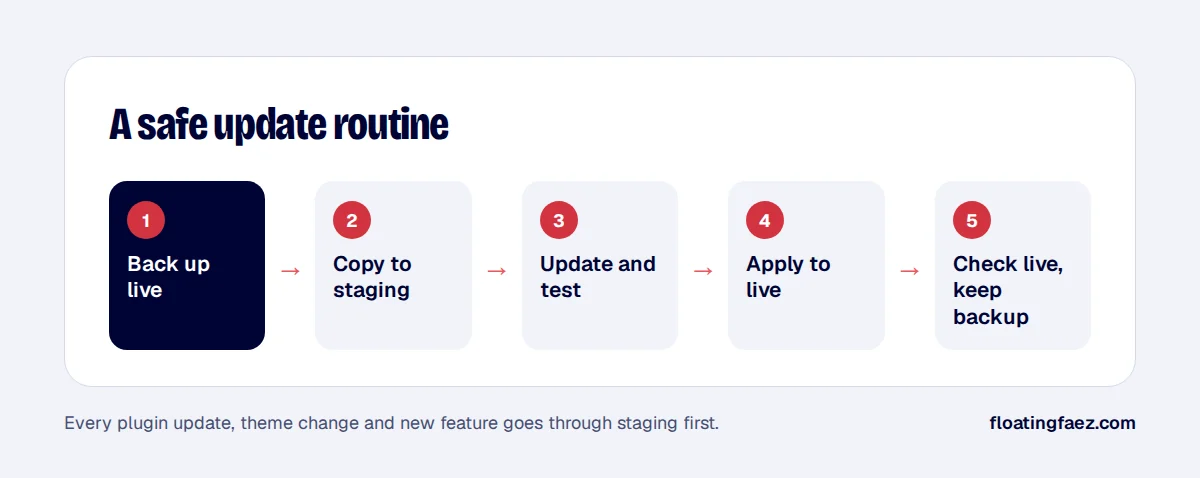
A safe routine
- Take a fresh backup of the live site.
- Refresh staging from live.
- Apply updates or changes on staging, then test product pages, cart, checkout and a test order.
- Apply the same changes to live: update the same plugins, or deploy the same code. Don’t copy the database over.
- Check the live site, and keep the backup for a few days.
It sounds like extra work, but it’s far less than recovering a broken store during a sale. Want staging set up properly? It’s an add-on in my fixed-price packages.