
WooCommerce says 120 orders. GA4 says 94. Meta Ads claims 151 purchases. Every store owner I work with has had this conversation with their marketing team. Some difference is normal, but large gaps usually come from a handful of fixable setup problems.
Why the numbers never match exactly
- Ad blockers and browser privacy features stop browser pixels on a share of visits.
- Consent: visitors who decline tracking in the EU should not be tracked, or only with consent-mode modelling.
- Attribution windows: Meta can credit a purchase to an ad viewed days earlier. GA4 uses its own attribution model.
- Duplicates: a thank-you page reload, or a browser and server event that aren’t deduplicated, counts one order twice.
The setup I use
1. One clean data layer
Push WooCommerce events into the data layer with consistent values: order ID, total, currency, items. Every tag reads from it, so GA4 and Meta always see the same order.
2. GA4 e-commerce events
Send the full funnel: view_item, add_to_cart, begin_checkout, add_payment_info and purchase, with transaction_id set to the WooCommerce order number. GA4 drops duplicate purchases that share a transaction ID.
3. Meta Pixel plus Conversions API
The browser pixel alone misses a lot. The Conversions API (CAPI) sends the same events from your server. To avoid double counting, both must include the same event_id and event name.
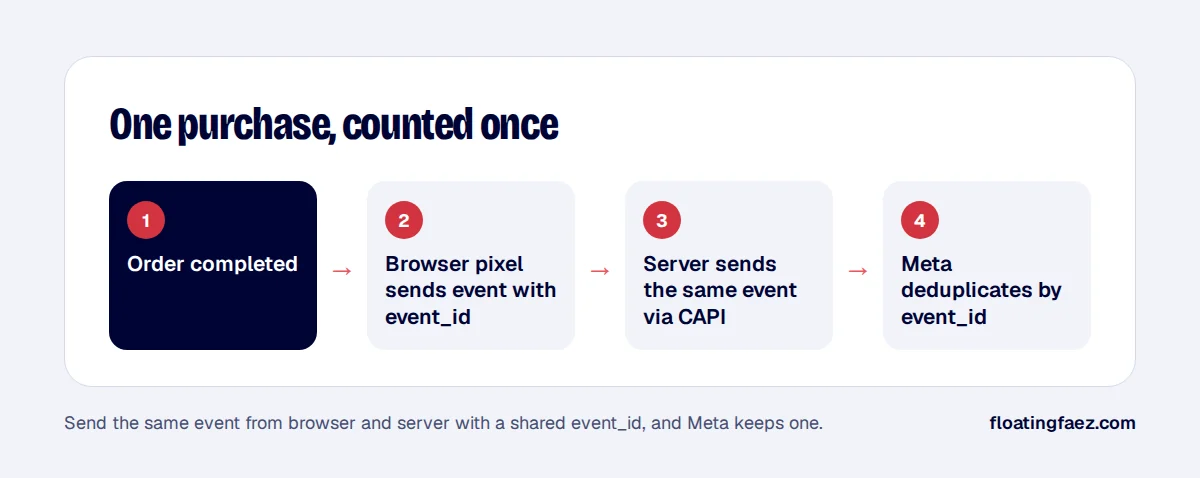
4. Fire purchase once
Trigger the purchase event on order completion, not on every load of the thank-you page. Either mark the order as tracked in its meta, or fire server-side from the order status change.
5. Respect consent
In the EU, connect your tags to Google Consent Mode v2 and your cookie banner. Server events still need a lawful basis, so get advice on what your privacy policy covers.
How to check it works
- Place a test order with Meta’s Test Events tool open. You should see one browser and one server event, marked as deduplicated.
- In GA4 DebugView, check the purchase event carries the right transaction ID and value.
- A week later, compare totals. Within 10 to 15% of real orders is normal for most stores; a gap of 40% means something is broken.
Want this set up properly, once? It’s one of my fixed-price packages.